
9 Factors to Compare When Choosing Payroll Software
Picking payroll software comes down to one question: will it pay people right and keep you out of tax trouble? For a U.S. small business, I’d compare nine things first: pay types, tax filing, setup, total cost, employee self-service, integrations, security, room to grow, and support.
Here’s the short version:
- Payroll features: Can it handle hourly, salary, bonuses, commissions, tips, reimbursements, garnishments, and 1099 contractors?
- Tax support: Does it calculate, file, and deposit federal, state, and local payroll taxes for you?
- Setup: Can I get live fast without a messy mid-year migration?
- Total cost: What will I pay over 12–24 months, including W-2s, 1099s, extra states, and off-cycle runs?
- Employee access: Can employees pull pay stubs, W-2s, and direct deposit info on their own?
- Integrations: Does it sync with accounting, time tracking, and HR tools without manual re-entry? (Some systems even allow you to automate payslip generation with an API for deeper integration.)
- Security: Does it use MFA, role-based permissions, audit logs, and SOC reports?
- Growth fit: Will it still work if I hire in another state or add benefits later?
- Support: If payroll breaks on a deadline, can I reach a person who can fix it?
A few numbers make this worth taking seriously. The article points out that 40% of small businesses get an IRS payroll tax penalty each year, and the average penalty is about $845. It also notes that IRS late-deposit penalties can start at 2% and climb from there. So I wouldn’t judge payroll software by monthly price alone. I’d judge it by how much work and risk it takes off my plate.
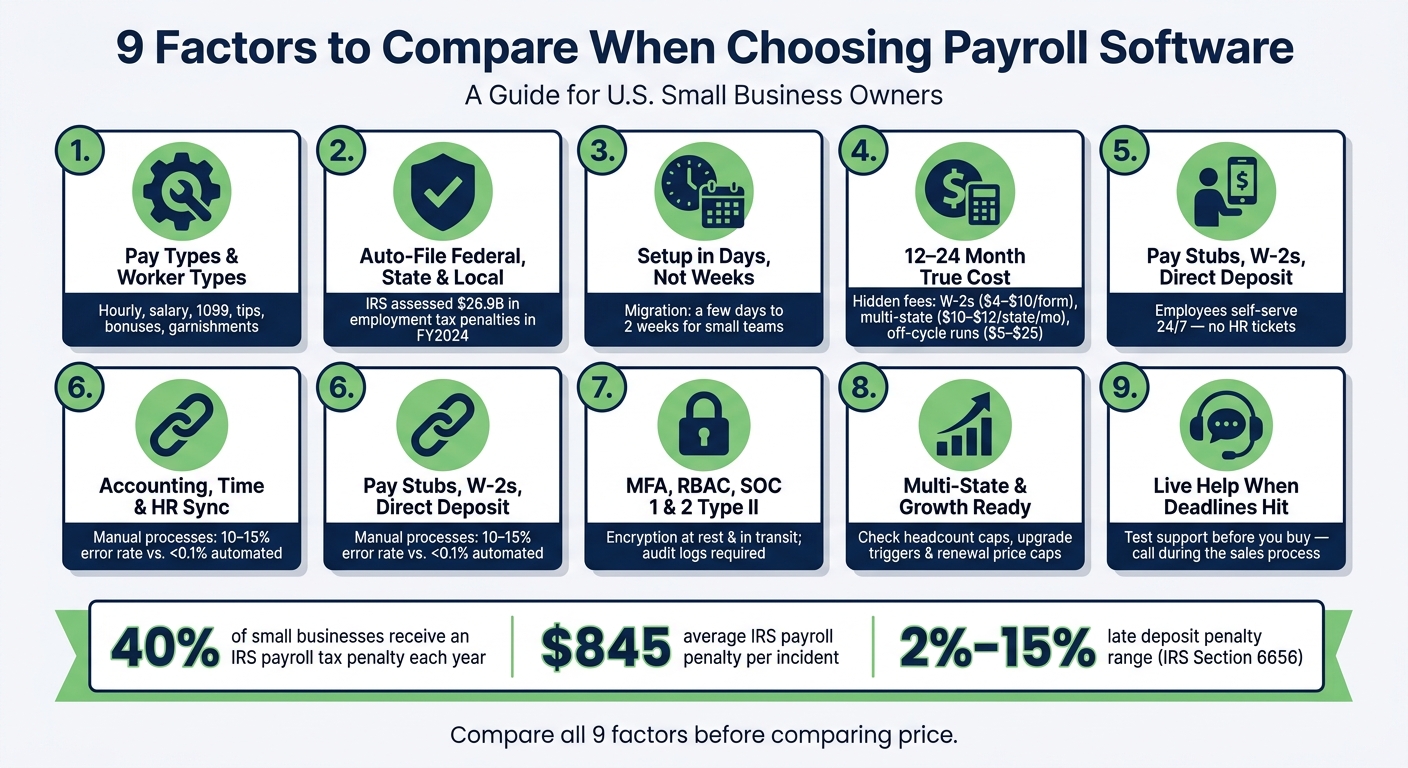
9 Factors to Compare When Choosing Payroll Software
CPA Shares: The Best Payroll Software's in 2026
sbb-itb-b1c1928
Quick Comparison
| Factor | What I’d check first | Why it matters |
|---|---|---|
| Payroll features | Worker types, pay types, pay schedules | Misses here lead to manual fixes |
| Tax support | Auto-calc, auto-file, auto-deposit | Lowers penalty risk |
| Ease of use | Onboarding, migration help, pay-run workflow | Cuts admin time |
| Total cost | Base fee + per employee + add-ons | Cheap plans can cost more later |
| Employee access | Portal for pay stubs and tax forms | Fewer HR requests |
| Integrations | Accounting, time, HR sync | Avoids duplicate entry |
| Security | MFA, audit logs, SOC 1/SOC 2 | Protects payroll data |
| Growth fit | Multi-state, plan limits, upgrades | Helps avoid a forced switch |
| Support | Phone/chat/email, tax issue help | Matters when deadlines hit |
If I were narrowing vendors, I’d use those nine checks as my filter first, then compare prices second.
What Small Businesses Should Compare First
Before you even look at price, get clear on what your business actually needs. A plan that costs $29/month can still miss the basics if it leaves out worker types you pay or makes you file state taxes by hand. So don't focus on the sticker price first. Focus on what's included, or compare CleverSlip and Xero Payroll if you need a standalone solution. That alone can knock weak options off your list fast.
Start with worker setup. Check whether the platform supports W-2 employees, 1099 contractors, or both. Also look at year-end forms. Some providers include them, while others charge extra. That matters because W-2 and 1099 workers follow different setup and filing rules.
Next, look at how you pay people. If your team includes hourly staff, salaried employees, commission-based workers, or tipped employees, make sure the system can handle each pay type the right way. Payroll rules shift based on how someone is paid, and small gaps here can turn into a mess later.
If you have employees in more than one state, check multistate support early. You want to know whether the system can deal with separate state registrations, unemployment insurance rates, and local tax rules. This is one of those areas that seems small at first, then turns into a headache if the platform falls short.
Then set your pass-fail rules before you compare anything else. Pick your non-negotiables first:
- Automated tax filing
- Direct deposit
- Secure employee access to pay stubs and tax documents
Use those as your first filter. If a platform can't clear those basics, it's probably not worth more time. Once it does, you can move on to the nine factors below.
| Requirement | What to Verify |
|---|---|
| Worker types | W-2 employees and/or 1099 contractors supported |
| Year-end forms | Included or billed separately |
| Tax filing | Federal, state, and local filings automated |
| State complexity | Multistate withholding and local taxes covered |
| Employee access | Secure portal for pay stubs, tax docs, and direct deposit |
| Pay types | Overtime, bonuses, commissions, and tips handled correctly |
Use this screen to narrow the field before you compare features, pricing, and support.
1. Payroll Features and Pay Types
Once you’ve confirmed the basics, look at how each system handles the pay types you use every pay period. This is where a lot of payroll tools look fine on the surface, then fall apart in practice.
Start with the worker types you actually pay. Hourly staff, salaried employees, contractors, and tipped workers all come with different payroll rules. A system might handle salaried payroll just fine but get overtime wrong or miss tip credits for tipped employees. At that point, it’s not a full payroll solution. If the software can’t process your actual payroll mix, nothing else - not price, not design - matters much. You might even consider CleverSlip vs QuickBooks Payroll if you need simple payslips without a full accounting migration.
Here’s a simple way to compare the most common pay types:
| Pay/Worker Type | How It's Processed | Key rules |
|---|---|---|
| Hourly and salaried workers | Automated gross-to-net calculation | FLSA overtime rules |
| Contractors | Direct deposit or check; no tax withholding | Form 1099-NEC |
| Tipped workers | Gratuity tracking and tip credits applied | IRS Publication 15 |
| Bonuses and commissions | Supplemental wage tax rates applied | IRS Pub 15-T |
| Expense reimbursements | Added to net pay as non-taxable | Internal expense policy |
| Garnishments | Court-ordered deductions from net pay | State/federal mandates |
Next, review pay schedule options. Good platforms should support weekly, biweekly, semimonthly, and monthly payroll runs. They should also let you run off-cycle payments for bonuses or payroll fixes without charging extra per run.
Then look at deductions. The system should automate benefit deductions, retirement contributions, and garnishments. If your team has to do those by hand, payroll gets messy fast.
Employee access matters too. People should be able to log in and get their pay stubs and year-end tax forms - W-2s and 1099-NECs - without emailing HR every single time. Before you commit, check exactly how the system delivers those documents. If you need a temporary solution while deciding, you can create a payslip PDF manually in just a few minutes.
2. Tax Compliance and Regulatory Support
After pay types, the next thing to look at is how each system handles filings, deposits, and year-end forms. Payroll features move money. Tax compliance is what helps you avoid penalties. So when you compare tools, focus on how much of that tax work the software takes off your team.
In fiscal year 2024, the IRS assessed more than 4.4 million employment tax penalties totaling nearly $26.9 billion.
What automated tax support actually means
Good payroll software should automatically calculate federal income tax, FICA (Social Security at 6.2% and Medicare at 1.45%), and state and local taxes based on each employee's W-4 and work location. It should also update tax tables automatically when taxable wage caps or rates change. On top of that, it should handle employer payroll taxes like FUTA and the employer share of FICA, plus quarterly Form 941 and annual Form 940 filings.
That distinction matters. If a tool calculates taxes but leaves filings and deposits in your hands, it's calculation-only software. And that means your business still owns the compliance risk.
Late deposits can get expensive fast:
| Deposit Timing | Penalty Rate |
|---|---|
| 1–5 days late | 2% of underpayment |
| 6–15 days late | 5% of underpayment |
| 16+ days late | 10% of underpayment |
| 10+ days after IRS notice | 15% of underpayment |
| Failure to file (940, 941) | 5% per month, capped at 25% |
Source: IRS Section 6656
So yes, accurate tax math matters. But filing automation matters just as much, because late deposits come with rising penalties.
Year-end forms and multi-state filing
Full-service platforms should automatically generate and file W-2s for employees and 1099-NECs for contractors by the January 31 deadline. Check the fine print: who actually files, what is included, and whether state registrations are part of the service.
State compliance gets more complicated the moment you hire outside your home state. If you employ people in multiple states, make sure the platform supports state withholding, unemployment insurance, and local taxes. Some platforms include all 50 states in base pricing, while others charge per state. That's why it pays to confirm both multi-state support and the added cost before you pick a plan.
Another feature worth checking for is a tax accuracy guarantee that covers IRS or state penalties caused by the vendor's filing errors. The best systems cut down the filing workload and lower your penalty risk.
3. Ease of Use and Setup
After you check compliance, look at something just as practical: can your team use the system easily every pay run? Payroll software that feels clunky tends to lead people back to spreadsheets, side notes, and manual fixes. That’s when mistakes start piling up.
How long setup actually takes
For a small, single-state business, migration often takes a few days to two weeks. That window can feel fine on paper, but only if you go in prepared.
Before you start, have these ready:
- Federal EIN
- State tax IDs
- Prior year-to-date payroll reports
- Employee W-4s and I-9s
- Bank account details
It also helps to switch at the start of a quarter or year. Mid-year moves are more of a headache because you have to carry over year-to-date wage and tax history, and that adds more room for mistakes. A smart way to check the move is to run one pay cycle in both systems and compare gross pay, taxes, and net pay before you fully switch over.
If the migration drags on or turns chaotic, the time cost can wipe out the money you hoped to save—especially if you compare CleverSlip vs Wave Payroll and realize you didn't need a full accounting migration just for payslips.
What to verify during onboarding
Before the first payroll run, make sure the system is set up for your payroll rules, not just the default settings.
You’ll also want to confirm whether year-end W-2 and 1099 forms are part of the base plan or billed on top of it. Those hidden per-form fees at year-end catch a lot of teams off guard.
Payslip delivery and employee access
Check that employees can get to their pay stubs, W-2s, and direct deposit details without needing HR to step in. A payroll portal should handle payslip delivery, history tracking, and employee self-service.
Do that check during onboarding, not after the first payroll run. If employees can’t use the portal on day one, your payroll system won’t save HR time - it’ll add more work.
4. Cost, Pricing Model, and Total Value
Once a system feels easy to use, the next step is simple: look at what it will cost over a full year. That matters because the advertised price is almost never the whole story. Most payroll tools use a monthly base fee plus a per-employee charge. Some also bill per pay run, which means weekly payroll can cost more than biweekly or semi-monthly payroll.
For example, one entry-level plan priced at $49 per month plus $6 per employee (or using a free payslip generator for very small teams) comes to $109 per month for a 10-person team.
What drives total cost over 12–24 months
A few things tend to push the bill higher than people expect.
Year-end form fees. W-2 and 1099 processing is sometimes billed separately in January. The usual range is about $4 to $10 per form. Check whether tax filings and year-end forms are part of your plan or billed on top.
Multi-state surcharges. If you have remote employees in more than one state, look closely here. Some plans include multi-state filing, but others treat it as an add-on. In some cases, you pay a flat monthly fee. In others, you need to move to a higher tier to get it.
Feature gating. This is where pricing can get slippery. Tools like time tracking, next-day direct deposit, and multi-state payroll are often locked behind higher-tier plans. So even if the base plan works today, you may need an upgrade later just to keep the same setup as your team grows.
Hidden fees to ask about upfront
- Setup / implementation: $50–$200 one time
- Year-end W-2 / 1099 forms: $4–$10 per form annually
- Off-cycle or bonus runs: $5–$25 per run
- Multi-state surcharge: $10–$12 per state per month
- Tax form correction (W-2c): $25–$75 per form
- Integration fees: $5–$20 per month for accounting, HR, or time-tracking connections
Pricing, integrations, and growth limits
Before you commit, map out your headcount for the next 12 and 24 months. Then verify which features are still included at that size. After that, add up the full picture: base fee, per-employee charges, year-end forms, integrations, and any multi-state costs.
That 12- to 24-month total is a much better way to judge value. A low sticker price can look good on day one and feel very different later. The best plan is the one that still fits your budget as headcount, state filings, and payroll needs get more complicated.
5. Employee Self-Service and Access
Once you’ve mapped out your total cost, look at something just as practical: how much time your team spends answering the same payroll questions over and over. Think pay stubs, tax forms, and direct deposit updates.
A solid employee self-service (ESS) portal cuts down on those requests and gives employees a faster way to handle their own payroll details.
What self-service actually does for your team
In day-to-day use, an ESS portal gives employees their own login so they can handle common payroll tasks without coming to HR or payroll first.
That usually includes the ability to:
- Download pay stubs
- Download W-2s and 1099s during tax season
- Update direct deposit details
- Change tax withholding elections
Some portals also show PTO balances and year-to-date totals. That makes payroll info easier to check and tends to reduce paycheck questions. It also cuts routine HR requests and trims manual data entry.
Payslip delivery and employee access
For remote and field teams, cloud portals and mobile access matter a lot. Employees should be able to get payroll documents 24/7, from anywhere.
During any software demo, don’t just look at the admin side. Open the employee view on a phone and test it yourself. Are pay stubs easy to find? Can employees get to tax forms without digging through menus? That small check can save a lot of frustration later.
Also confirm that employees can access W-2s and 1099s year-round.
What to verify before you commit
Before you sign, check a few basics:
- Whether ESS is included in your plan
- Whether employees can update direct deposit and withholding on their own
- Whether the portal syncs with time-tracking and benefits data
Next, compare payroll software options to see how well the platform connects payroll data with accounting and HR tools.
6. Integration With Accounting and HR Tools
Beyond employee access, payroll software also needs to move data cleanly in the background. Payroll data should sync on its own with accounting, HR, and time-tracking tools. When teams have to re-enter data by hand, payroll mistakes creep in and reconciliation takes longer. Manual payroll processes carry error rates between 10% and 15%, while well-set-up automated systems cut that to under 0.1%.
When integrations fail, the mess spreads fast. Your books can drift away from actual payroll spend, tax liabilities can land in the wrong place, and reconciliation can eat up hours you simply don’t have.
Check for native integrations with your accounting, time-tracking, and HR systems. And press vendors on one point in particular: direct integrations vs. third-party connectors. For custom workflows, you might even need a payroll API to bridge gaps between proprietary systems. A direct integration moves data without export/import steps. Third-party connectors can still do the job, but they add another layer that can fail and can be tougher to sort out when something goes wrong.
During a demo, ask the vendor to show a live sync with your exact tools. Not a slide deck. Not a “coming soon” promise. The live workflow tells you far more than any polished pitch.
It also helps to confirm how often data syncs - real time, daily, or after each pay run - and who owns mismatch resolution when records don’t line up. That one question can save a lot of blame-shifting later.
Use these three integration types as the main points of comparison:
| Integration Type | Key Tools | What It Automates |
|---|---|---|
| Accounting | QuickBooks, Xero, Sage Intacct, NetSuite | Journal entries, labor costs, tax liabilities |
| Time Tracking | Homebase, Clockify, QuickBooks Time | Hourly pay, overtime, PTO calculations |
| HR & Benefits | Rippling, Gusto, ADP Workforce Now | New hire data, deductions, compensation changes |
7. Security, Privacy, and Data Protection
After tax compliance, the next thing to check is how each vendor protects the payroll data it handles. This data includes Social Security numbers, bank account details, wages, garnishments, and home addresses. If that information gets exposed, the damage can be serious. It also points to weak internal controls.
Start with the basics: encryption, multi-factor authentication (MFA), and role-based access controls (RBAC). You want encryption both at rest and in transit, MFA turned on for all users, including admins and employees, and separate permissions for editing, approving, and releasing payroll. That last one matters a lot. Splitting those actions is a core fraud-prevention control.
Audit trails matter just as much. A solid audit log should show who changed what, when the change happened, and the before-and-after values. During a trial, ask the vendor to show a sample log for a bank account change. If the record feels vague or leaves out key details, that's a red flag.
To check whether a vendor's control claims hold up, ask for the actual SOC 1 Type II and SOC 2 Type II reports, not just a trust-page badge or logo. SOC 1 covers financial reporting controls. SOC 2 covers data security and privacy. You should also ask for a signed DPA that spells out how PII is stored, where it is hosted, and what happens when you leave the platform.
There's also a legal detail many small business owners miss: the IRS still holds employers responsible for withheld taxes even when a third-party payroll provider handles filing. That's why it's smart to add a contract clause that covers penalties and interest caused by provider errors.
Use these controls as a quick vendor screen:
| Security Control | What to Verify |
|---|---|
| Encryption (AES-256) | Data encrypted at rest and in transit |
| MFA | MFA enforced for all user types |
| RBAC | Separate edit, approve, and release permissions |
| Audit Logs | Before-and-after values, user identity, and timestamps |
| SOC 1 & SOC 2 Type II | Actual audit reports, not just a logo |
| DPA | Signed agreement covering PII handling and data residency |
| Penalty-Liability Clause | Contract terms covering penalties caused by provider errors |
8. Scalability and Growth Readiness
After security, the next test is simple: can the platform keep up as your company grows, or will your team end up patching things together by hand? Payroll usually cracks under added complexity, not just a bigger employee count.
U.S. Pay Types and Schedules
As your team expands, you may need to run more than a basic payroll. New pay types should work inside the system without side steps or hand-built fixes. During a demo, ask the vendor to show you an off-cycle bonus run and a pay correction. That tells you a lot, fast. If the process depends on manual workarounds, it won’t hold up well as payroll gets busier.
Federal/State Tax and Year-End Form Support
Once pay types look solid, check what happens when you hire in more states. Does expansion change your plan? Does it add filing steps? Some providers keep multi-state filing behind higher-priced tiers, which can hit you later if you don’t ask now.
Before you sign, get clear on which milestones trigger a forced plan upgrade. Common ones include hiring in a second state or adding a 401(k). Also ask whether the provider helps with new-state registration, not just tax filing. Those are not the same thing, and that gap can create extra work for your team.
Year-end is another pressure point. Make sure W-2 and 1099 processing stays included in your plan as your headcount and state footprint grow. You don’t want to find out in December that year-end forms come with a separate bill.
Payslip Delivery and Employee Access
As headcount climbs, employee self-service matters more. People should be able to pull current and past payslips on their own, without sending HR a message every time they need a record. A solid employee portal should include full payslip history, email delivery, and YTD totals.
Pricing, Integrations, and Growth Limits
Growth often changes cost before it changes features, so check upgrade triggers and renewal terms early. Some platforms put a cap on headcount. Others push you into a full migration once you hit a certain size. That’s the kind of fine print that can turn a smooth setup into a headache later.
You should also confirm native integrations for your accounting and HR tools, along with any added cost tied to those connections. As payroll volume goes up, manual data entry becomes more dangerous. One small mistake can ripple across tax filings, reporting, and employee pay. And while you’re at it, get any renewal price cap written into the contract.
Scalability checklist:
- New pay types run without manual workarounds
- Multi-state filing is included or clearly priced
- Provider supports new-state registration, not just filing
- W-2 and 1099 processing stays included as headcount grows
- Employees can access full payslip history without HR involvement
- Native integrations confirmed for accounting and HR tools
- Headcount caps and upgrade triggers identified before signing
- Renewal price cap secured in the contract
9. Support Quality and Vendor Reliability
After features, compliance, and cost, look at what happens when payroll goes sideways. Support is part of risk control. It’s not some nice extra. If support is weak, the odds of payroll mistakes go up.
Test Support Before You Sign
Check whether the vendor offers phone, email, and live chat. Also ask if you’ll get a dedicated contact or a U.S.-based expert for harder issues. That matters more than it sounds. When a payroll deadline is hours away, live help can be the difference between a clean run and a mess.
Match their support hours to your payroll schedule. Then do something simple: call the help line before you buy. Act like a prospect. See how long you wait, whether a human picks up, and how well that person answers a basic question.
The quality of support you receive during the sales process is typically the ceiling of what you'll get as a paying customer.
Tax and Year-End Form Support
When tax work breaks, support quality shapes how fast you get back on track. Ask direct questions and don’t settle for vague answers.
- Who fixes late or missed deposits?
- Does the vendor handle new-state registration and filing?
- Does the vendor back errors with a written accuracy guarantee covering penalties and interest?
- Can you review W-2s before filing to catch year-to-date errors early?
- Are W-2 and 1099 processing included in your plan, not billed separately at year-end?
This is the part many teams skip, and it can come back to bite them in December or January.
Vendor Reliability and Data Portability
Your staff should be able to pull pay stubs and tax forms on their own, without sending HR a ticket every time. That saves time and cuts friction.
It also helps to check outside review sites like Trustpilot, G2, and Capterra. Don’t get hung up on one angry review. Look for patterns instead: slow replies, hard-to-reach phone support, or trouble getting a live person during key payroll windows.
Data access matters too. A good vendor shouldn’t make it hard to leave. Review the contract and confirm that you own your payroll data and can export it at no charge. Some older vendors still charge exit fees of $1,500 to $3,000.
Use these checks to score each vendor next to the other factors you’ve already reviewed.
Comparison Tables to Use Throughout the Article
Use these tables as a quick worksheet during vendor demos and quote reviews.
Core Payroll Features
| Feature | What to Ask For |
|---|---|
| Worker types supported | W-2 employees and 1099 contractors |
| Direct deposit speed | Same-day, next-day, or 2–4 business days |
| Off-cycle/bonus runs | Available for bonus or correction runs |
| Secure employee portal for pay stubs and tax forms | Mobile and web access included |
| Automated pay runs | Scheduled payroll runs |
Tax Compliance
| Compliance Criteria | What to Verify |
|---|---|
| Auto-filing (federal/state/local) | Cuts manual work and lowers late-deposit risk |
| Multi-state support | Important for remote teams |
| Help with IRS and state notices | Useful when the provider helps resolve notices |
| Coverage for vendor-caused filing errors | Clarify whether the provider covers fines from its own filing errors |
| W-2 and 1099 processing | Confirm that year-end forms are included, not billed separately |
Pricing and Total Value
Track the monthly base fee, per-employee fee, and add-ons in one place. The sample monthly prices below should be confirmed during the quote process, especially for implementation, year-end fees, and contract terms.
| Provider | Base Fee (Monthly) | Per-Employee Fee |
|---|---|---|
| Gusto | $49 | $6 |
| QuickBooks Workforce | $50 | $6.50 |
| OnPay | $49 | $6 |
| Patriot Payroll | $37 | $5 |
| Roll by ADP | $39 | $5 |
Integrations, Support, and Security
| Category | Items to Compare |
|---|---|
| Integrations | Accounting sync (QuickBooks/Xero), time tracking, benefits administration, API access |
| Support | Channels (phone, live chat, email), availability hours, stated response time, dedicated specialist option |
| Security | SOC 1 Type II and SOC 2 Type II certifications, encryption at rest and in transit - request the SOC 1 Type II report directly, as it covers financial reporting controls |
Use these tables to score each vendor side by side.
Factor 1: Payroll Features and Pay Types
After the first screen, look at how each system handles the pay types you use every payroll. The main question is simple: can this platform run your payroll cleanly, without manual cleanup after the fact?
Start with pay schedules. Check support for weekly, biweekly, semimonthly, monthly, and concurrent schedules. Some teams run more than one cycle at the same time - weekly for hourly employees and monthly for salaried staff, for example - so make sure the platform can do that under one account.
Payslip format also deserves a close look during the demo. Ask to see a sample payslip PDF. It should be clean, easy to read, and show YTD totals. If people can't make sense of their pay stub, problems tend to pile up fast.
Use the checklist below to compare vendors side by side.
| Pay Type | What to Verify |
|---|---|
| Salaried / Hourly | Supports multiple rates for different shifts or roles |
| Overtime | Automates FLSA 1.5x rule and state-specific overtime rules |
| Bonuses & Commissions | Applies correct supplemental tax withholding |
| 1099 Contractors | Tracks payments and generates year-end 1099-NEC forms |
| Reimbursements & Stipends | Correctly excludes nontaxable amounts from gross wages |
| Multi-Schedule Support | Runs different pay cycles simultaneously under one account |
| Payslip Output | PDF with itemized earnings, clear earnings and deductions sections, and YTD totals |
During the demo, ask the vendor to walk through an off-cycle bonus run and a contractor payment in real time. That kind of test tells you a lot fast. If the platform handles both without awkward workarounds, move on to tax compliance.
Factor 2: Tax Compliance and Regulatory Support
Once pay types are covered, the next thing to check is tax compliance. This part matters a lot. The IRS assessed more than $26.9 billion in employment tax penalties in fiscal year 2024, so filing automation is not just a nice extra. It’s one of the main things to compare.
In the U.S., payroll taxes usually come down to three buckets: federal withholding, FICA, and state or local taxes. A good platform should calculate all three on its own and update rates when rules change. That matters because late federal tax deposits can get expensive fast. Penalties start at 2% for deposits that are just 1–5 days late, and can climb to 15% if the amount stays unpaid more than 10 days after an IRS notice.
Year-end filing is another checkpoint. Full-service platforms should file W-2s and 1099-NECs by January 31 and also handle Forms 941 and 940.
Things get harder fast when you hire people in more than one state. At that point, the software needs to do more than basic withholding. It should manage separate state unemployment insurance (SUI) accounts, handle local income taxes, and apply reciprocity rules that change how withholding works. It’s also smart to ask one direct question: If the vendor makes a filing mistake, do they pay the penalty?
| Compliance Feature | What to Verify |
|---|---|
| Federal Withholding (FIT, FICA) | Automatically calculates based on current IRS tables and W-4 data |
| FUTA / SUI | Applies correct rates; tracks state unemployment accounts separately |
| Multi-State Support | Handles state registration tracking for remote workers |
| Quarterly / Annual Filings | Files Form 941, 940, W-2, 1099-NEC, and W-3 on your behalf |
| Tax Table Updates | Updates automatically when federal or state rates change |
| Penalty Guarantee | Vendor covers penalties caused by their own filing errors |
| Audit Trail | Logs changes and stores records for audits |
Once compliance is clear, the next step is simpler: look at how easy the software is to use each pay period. After tax support, compare ease of use and setup.
Factor 3: Ease of Use and Setup
After compliance, the next thing to check is speed. Payroll software has to be quick enough for day-to-day work. And it should be simple enough that a non-accountant can run payroll without needing someone to step in.
Mid-year migration is usually the toughest part of onboarding. Why? Because prior YTD wages and tax history need to move over cleanly. Get clear on this before you sign anything. Ask the vendor to confirm in writing who handles that step. Is it a named specialist, or are you getting a guided import?
During demos, don't just sit through the happy-path version. Push on the messy stuff. Ask them to show a mid-period new hire, an off-cycle bonus, or a multi-state withholding case in real time. That's where you see what the system can actually do. If the answer turns into spreadsheets and hand fixes, that's a red flag.
Also, look for a live PDF payslip preview. That gives admins a chance to catch formatting problems or wrong data before payroll is finalized.
Here’s a simple side-by-side view of the setup features to compare:
| Feature | What to Look For |
|---|---|
| Guided Onboarding | Clear progress indicators and simple forms that walk users through setup |
| Pre-Run Validation | Automatic flags for missing tax info or unusual pay amounts before finalizing |
| Data Migration Support | A named specialist or guided transfer for YTD wage and tax history |
| CSV Import/Export | Built-in import/export for employee data, hours, and accounting exports |
| Live PDF Preview | Real-time payslip view before the run is finalized |
| Time to Go Live | A confirmed timeline in writing, typically a few days to two weeks for small teams |
Once the workflow feels manageable, compare total cost.
Factor 4: Cost, Pricing Model, and Total Value
The monthly price can look good at first glance. But it often doesn’t show the full cost.
For payroll software, the better comparison is the full 12-month total, not just the sticker price per month. Most tools use a base fee plus a per-employee charge. Then add-ons enter the picture and can change the numbers fast.
Small businesses usually feel the extra charges most in a few spots:
- year-end W-2 and 1099 filing
- off-cycle payroll runs
- multi-state filing
- garnishment processing
Those add-ons can push total spend up in a meaningful way.
There’s another pricing trap: per-pay-run fees. If your provider charges each time you run payroll, a weekly schedule can drive annual cost much higher. It’s also worth asking one simple question: does the per-employee fee apply only to active employees, or to every user listed in the system? That detail can change what you pay.
A smart way to compare plans is to project your headcount 12 months out. Then stack up the full annual cost:
- base fee
- per-employee charges
- add-ons you expect to use
If that total lands close to the next pricing tier, the higher plan may end up giving you more for the money.
Use a tiered plan example to see how pricing shifts as more features open up:
| Plan | Price | What's Included |
|---|---|---|
| Free | $0/month | Up to 10 employees, 50 payslips/month, PDF download |
| Starter | $9/month | Up to 25 employees, unlimited payslips, email delivery, employee self-service portal |
| Pro | $29/month | Unlimited employees, bulk generation, YTD totals, live PDF preview, priority support |
| Business | $79/month | API access, audit trail, dedicated account manager |
That’s the part many teams miss. A lower-priced plan can still cost more in practice if it leaves a lot of payroll work on your plate.
Next, compare how much of the day-to-day payroll work the software actually removes.
A low price matters less if the plan still creates extra payroll work.
Factor 5: Employee Self-Service and Access
After cost, look at how much day-to-day payroll work the portal takes off your plate. A good self-service portal keeps employees out of your inbox. If people can check pay stubs, download year-end tax forms, and change direct deposit details or withholding elections on their own, you save time on both sides.
Focus on the basics first: pay stub access, tax form retrieval, and self-service updates. The best portals make these tasks easy without adding admin cleanup later. It also helps when the portal includes pay stub history and generator options and employee self-service by default. For distributed U.S. teams, make sure the portal shows the right state tax forms.
Mobile use matters more than many teams expect. If you have remote staff or people working in the field, a mobile app or responsive web portal can make a big difference. And don't just test the admin dashboard. Open the employee portal on your phone and see how it feels on a small screen.
Security matters here too. Employee portals hold sensitive data, including Social Security numbers and bank account details. Check whether the portal supports MFA before you move ahead.
| Feature | What to Look For |
|---|---|
| Employee Access | View and download pay stubs; retrieve W-2s/1099s; update W-4 and direct deposit details |
| Document History | Pay history and tax records, including access for former employees |
| Mobile Usability | Responsive web portal or mobile app with easy small-screen navigation |
Next, compare how the system syncs payroll data with accounting and HR tools.
Factor 6: Integration With Accounting and HR Tools
Once employees can view their own records, the next thing to check is how payroll data flows through the rest of your stack. This part matters more than it may seem. Payroll needs to sync cleanly with your accounting, HR, and time-tracking systems, because duplicate entry is one of the easiest ways to end up with payroll mistakes.
Most payroll platforms connect in three main ways: native integrations, CSV exports, or API/webhooks.
| Connection Type | Setup Effort | Data Accuracy | Scalability | Best For |
|---|---|---|---|---|
| Native Integration | Low | High | Moderate | Teams that use standard accounting and HR tools |
| CSV Export | Low to medium | Lower | Low | Simple workflows and smaller teams |
| API / webhooks | High | High | High | Growing businesses with custom workflows |
Here’s the simple version. Native integrations move data automatically, which cuts down on manual work. CSV exports can get the job done, but they usually need someone to review and upload files by hand. API access and webhooks give you custom, real-time automation, which is a better fit if your team has more complex processes.
Don’t settle for a roadmap promise here. Ask for a live sync demo using your own accounting system so you can see how the connection works in practice. Then test the edge cases that tend to cause problems, like multi-state withholding, garnishments, and retro pay.
Next, check how those connections protect payroll data.
Factor 7: Security, Privacy, and Data Protection
Payroll data is some of the most sensitive information a company handles. It includes Social Security numbers, bank account details, home addresses, pay history, and garnishments. Once that information starts moving between connected tools, access control becomes the next big test.
One point matters here: outsourcing payroll does not transfer your legal duty for withheld taxes or payroll records.
When you compare vendors, shift the conversation away from polished claims and toward what you can check for yourself. Think of these as proof points, not feature boxes on a sales sheet:
- Encryption - confirmed at rest and in transit (SSL/TLS)
- MFA - phishing-resistant MFA, not SMS or email codes
- RBAC - separate data entry from approval
- Backups - automated and regular, so payroll data is protected from outages, deletions, and attacks
- Audit logs - before-and-after values, user identity, and timestamps for every material change; audit trails also help support FLSA recordkeeping needs , which can be managed using a professional payslip generator
A demo should make these items visible. If a vendor says the controls are in place, you should be able to see proof.
| Item to Verify | What to Look For |
|---|---|
| SOC reports | SOC 1 Type II and SOC 2 Type II reports - request the actual documents, not just a logo |
| Encryption | Confirmed at rest and in transit |
| MFA | Phishing-resistant authentication enforced for all admin users |
| Audit Trail | Before/after values logged with user ID and timestamp |
| Permissions | Separate roles for edit, review, and release |
| Backups | Automated, regular backups with off-site redundancy |
| Breach Protocol | Documented notification timeline and data-deletion policy at contract end |
| Tax Visibility | Can you independently verify tax payment status via EFTPS or another evidence path? |
After security, the next step is to look at scale - especially what happens as headcount grows and state filing needs start stacking up.
Factor 8: Scalability and Growth Readiness
After security, the next thing to check is simple: will this platform still work when payroll gets messier?
That matters because payroll complexity often grows faster than headcount. You might not add many employees, but you may add new states, new pay rules, more approval steps, and more tools that need to connect. A scalable system can handle that without pushing you into a painful migration.
One of the clearest growth tests is multi-state payroll. This is often where pricing shifts, setup gets harder, and admin work starts to pile up. At that stage, plan limits and pricing tend to matter more than basic payroll features.
During a demo, ask the vendor to show you a few common stress points:
- A new-state hire
- A retro pay correction
- An off-cycle payroll run
Also check whether the platform has employee limits and whether there’s a clear upgrade path as your team gets bigger. If that path feels fuzzy, that’s a red flag.
| Business Stage | Key Payroll Needs | What to Verify |
|---|---|---|
| Small Team | Simple pay runs, tax filing, W-2/1099 support | Ease of use and clear pricing |
| Expanding Team | Multi-state payroll, benefits, PTO, and time tracking | HR integrations and upgrade triggers |
| Complex Payroll | Custom approvals, departments, and reporting | Configurability and analytics depth |
Once scale is covered, the next test is support. That’s what matters when payroll problems show up.
Factor 9: Support Quality and Vendor Reliability
Once you've covered payroll features, compliance, cost, and integrations, support turns into your safety net. And when payroll goes sideways, speed matters. A failed direct deposit or an IRS notice isn't something you can leave sitting in a queue until tomorrow.
Start with the basics: which support channels do you get? Phone, live chat, and email are common, but many vendors lock some of them behind higher-priced plans. After that, check support hours. Some providers offer 24/7 help from real people. Others only staff support during standard U.S. business hours or on weekdays. That sounds fine on paper, but if you process payroll at night or work across time zones, it can turn into a headache fast.
A simple way to test this before you buy: contact support during the sales process with a specific question. See how long it takes to reach an actual person. That one small test can tell you a lot.
Onboarding is another area where vendors start to separate themselves. Some offer hands-on help moving employee records and prior wages. Others point you to a guided setup and leave the rest to you. If your needs are more involved, some higher-tier plans also include a dedicated account manager.
You should also ask a blunt but important question: if filing errors happen, who fixes them, and how fast? That's where exposure starts to shrink or grow. A low-cost plan can get expensive in a hurry once you add cleanup work, corrections, and penalties.
Score each vendor on a few things that matter day to day:
- Response speed
- Escalation process
- Error handling
Then check independent reviews on G2, Capterra, or Trustpilot before you commit. Look for patterns, not just star ratings. One glowing review doesn't tell you much. Ten people saying tax notices took too long to resolve? That's a signal.
| Support Factor | What to Check |
|---|---|
| Channels | Phone, live chat, and email availability, especially if access varies by tier |
| Hours | 24/7 human support vs. standard U.S. business hours or weekdays |
| Onboarding | Hands-on migration help vs. guided setup |
| Escalation | Account manager on higher-tier plans |
| Reliability Guarantee | Who fixes filing errors and how fast |
| Review Patterns | G2, Capterra, and Trustpilot patterns on response time and tax-notice handling |
Conclusion
Price is the wrong way to judge payroll software. A lower monthly fee can look good at first, then cost you time and headaches later. It makes more sense to compare each platform using the nine factors in this article and pick the one that handles your pay types, tax filing, security, and growth needs without piling on manual work. The best fit is the one that works for your payroll setup now and still makes sense as your company grows.
Once you narrow your options, test the software under normal payroll pressure. Ask each vendor to walk you through a real payroll run, including an off-cycle bonus, a correction, and tax-notice handling. That’s the moment where you find out if the system works in actual payroll situations or just looks good in a demo.
Before you sign anything, make sure the switch will be clean. If you're moving from one system to another, run both in parallel for at least one pay period and compare gross wages, tax withholdings, and net pay line by line. It’s a little extra work up front, but it can save a mess later. Also, avoid switching during Q4, when year-end payroll tends to be the toughest to handle.
The right payroll software runs accurately today and still fits your business after the next hire, tax filing, or state expansion.
FAQs
How do I know if I need full-service payroll?
Full-service payroll is usually the right choice if you want to cut admin work and lower tax compliance risk.
It often makes sense if you have three or more employees, deal with complex tax withholdings, operate in more than one state, or have missed filing deadlines in the past. It can also be a smart move if payroll keeps pulling you away from core business work.
The big draw is simple: it takes a lot off your plate. A full-service provider automates tax filings, deposits, and year-end reporting, which means less manual work and fewer chances for costly mistakes.
When is the best time to switch payroll software?
The right time to switch payroll software is when your current system starts slowing the business down or can’t keep up as things get more complex.
That might show up in small ways at first. Payroll takes too long. Reporting feels clunky. New states, new hires, or added benefits create extra manual work. Then it turns into a bigger problem: the system becomes a roadblock instead of a tool.
If you’re making a move, plan it with care. Be clear about the features that need to come over, figure out which historical records you need to keep, and put one person in charge of the rollout so the process doesn’t drift.
It also helps to pick a platform that can grow with you. Look for a scalable, modular system that fits your long-term goals, not just what you need today.
What hidden payroll fees should I ask about?
Look past the base monthly fee. That number rarely tells the whole story.
Ask about setup and implementation charges, year-end tax form fees for W-2s and 1099s, and added costs for off-cycle or bonus payroll runs, multi-state tax filings, and benefits administration.
It also helps to confirm how billing works. Are you charged per active employee, or per person stored in the system? That one detail can change your total bill more than you'd expect.
You should also ask about fees for reversals, corrections, and data migration. Before you sign anything, request the full fee schedule in writing.
Payroll, simplified
Create structured payslip PDFs in minutes.
Build country-specific payslip documents, deliver them instantly, and keep a searchable history for audits and employee requests.
Start free