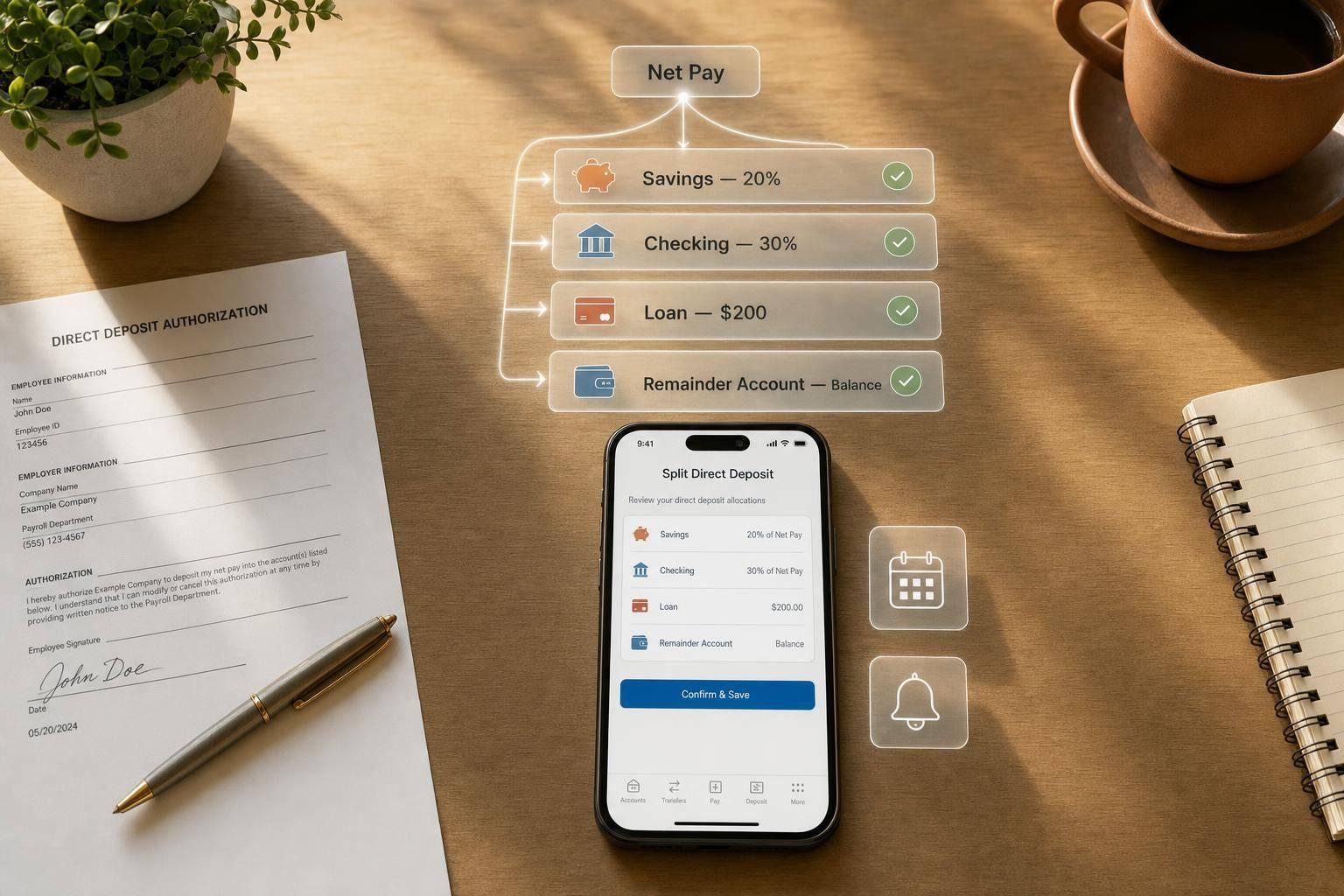
How to Split Payroll Payments Across Accounts
You can split payroll only after taxes and deductions come out. That means the split applies to net pay, not gross pay. In most U.S. payroll systems, the setup is simple: collect written permission, verify each bank account, set one account to get the leftover amount, test the setup, and review the first live payroll.
Here’s the short version:
- I split net pay by fixed dollar amounts or percentages
- I mark one bank account as the remainder account
- I collect signed employee approval and bank details for each account
- I verify routing and account numbers before payroll closes
- I check timing, because changes often take 1 to 2 pay cycles
- I review the first payroll and watch for ACH return codes like R02, R03, and R04
- I keep records, since federal rules can require payroll records for at least 3 years
One stat stands out: employees who use split deposit save up to $90 more per month, according to Nacha. That helps explain why many workers use it for savings, bills, and shared household costs.
If I want fewer payroll errors, I keep the setup plain: use fixed amounts for stable pay, percentages for variable pay, and always send any leftover pay to one checked account.
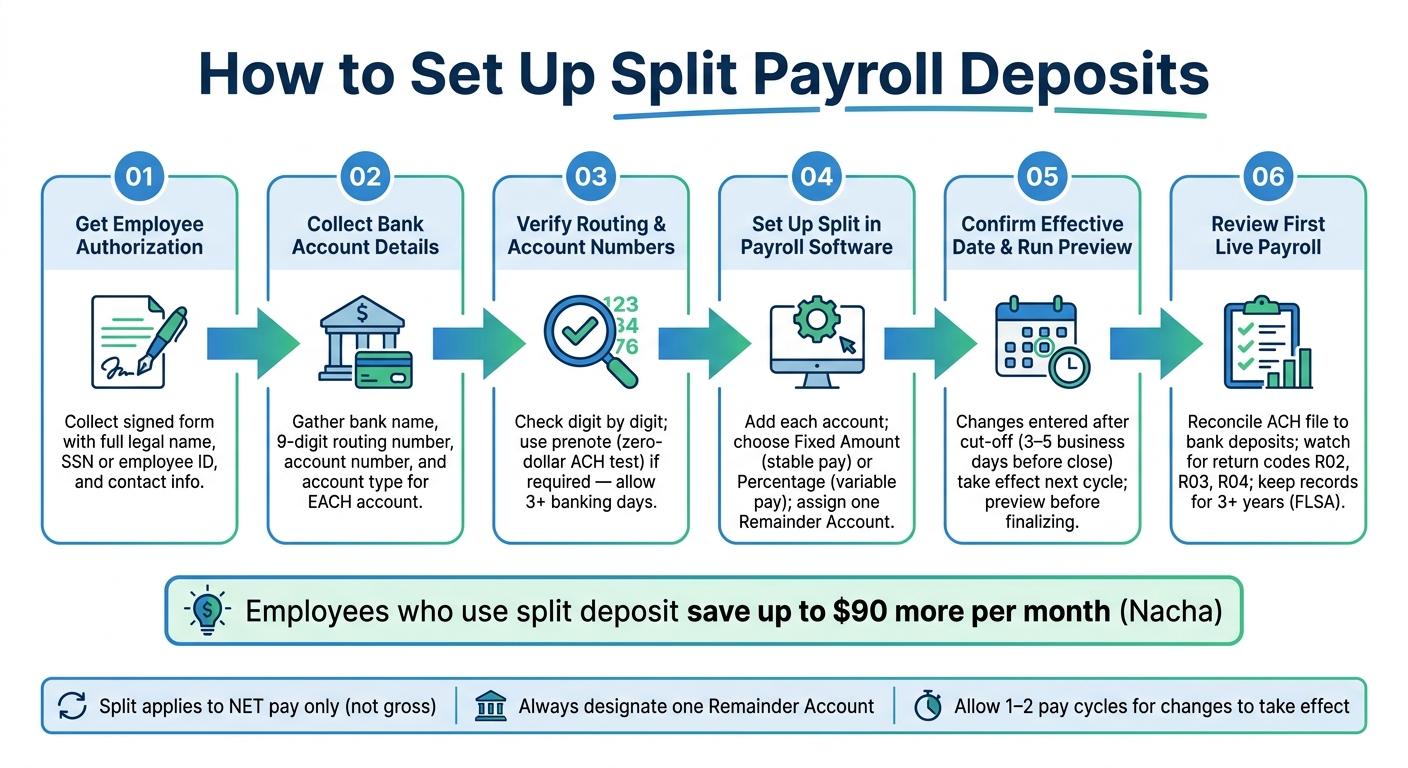
How to Set Up Split Payroll Deposits: Step-by-Step Guide
How to split direct deposit between two bank accounts
sbb-itb-b1c1928
Collect Employee Authorization and Bank Account Details
After the employee picks the split, gather a signed authorization and verified bank details for each account. That helps you avoid deposits going to the wrong place and keeps the setup in line with what the employee asked for.
What Employee and Account Information You Need
A split direct deposit authorization form should include the employee’s full legal name, employee ID or Social Security number used in your payroll system, and contact details such as email and mailing address. For each account, collect the bank name, account number, account type, and the split instruction.
| Information Category | What to Collect |
|---|---|
| Employee Identity | Full legal name, mailing address, SSN or employee ID, contact info |
| Each Bank Account | Bank name, 9-digit routing number, account number, account type |
| Allocation | Fixed amount or percentage; identify one remainder account |
| Authorization | Employee signature, date, and revocation terms |
Mark one account as the remainder account. That account gets any net pay left after the fixed allocations are taken out.
It also helps to request a voided check or a bank letter for each account. That extra step can catch transposed digits before the next pay run.
How to Verify Details Before the Next Pay Run
Once the form is complete, verify every routing number and account number before payroll closes. Check each routing number digit by digit and make sure it contains nine digits.
If your company uses a prenote process, send a zero-dollar ACH test transaction to the bank to confirm that the routing number and account number match before any money is sent. When prenotes are used, NACHA requires at least three banking days before the first live entry.
Split changes often take 1 to 2 pay cycles to go into effect, so employees should know that the first paycheck may still follow the old setup. After verification is done, enter the accounts and split instructions into your payroll software.
How to Set Up Split Payments in Payroll Software
After verification, enter each account in your payroll software and set the split. Open the employee record, then go to Pay, Payment Method, or Direct Deposit. From there, add each bank account using the routing number, account number, account type, and bank name the employee gave you.
Next, decide how the employee’s net pay will be divided. Then assign the account that should get whatever is left.
Add Multiple Accounts and Set a Remainder Account
Every split setup needs one account marked as the remainder account. This account gets whatever net pay is left after fixed dollar amounts or percentage-based allocations go to the other accounts first.
In most payroll systems, that’s how the math works behind the scenes: the software sends money to the other accounts first, then drops the balance into the remainder account.
Skip this step, and things can go sideways fast. You can end up with setup errors or deposit amounts that don’t match what the employee expected. If no remainder account is set, the system may not know where to send the last part of the paycheck.
Fixed Amounts vs. Percentages: Which Split Method to Use
Pick the split method based on how steady the employee’s pay is.
| Split Type | How It Works | Best Use Case | Advantages | Limitations |
|---|---|---|---|---|
| Fixed Amount | A set dollar amount goes to a specific account each pay period | Steady savings targets or recurring bill payments | Predictable; easy to budget around | Can fail or leave nothing for the remainder account if net pay is lower than usual |
| Percentage | A set portion of net pay goes to a specific account | Roles with variable pay, such as overtime, bonuses, or commissions | Adjusts automatically with paycheck size | The exact dollar amount changes each pay period |
| Remainder | Receives 100% of what’s left after other splits are applied | Primary checking account for day-to-day spending | Makes sure the full paycheck is distributed | Must be the last account in the calculation sequence |
A simple rule of thumb: use fixed amounts when pay stays about the same, and use percentages when pay moves up and down. That small choice can save a lot of cleanup later.
Save Changes and Confirm the Correct Payroll Date
Before you save anything, check the effective date in the software. If the change is entered after the payroll cut-off - usually 3 to 5 business days before the pay period closes - it won’t take effect until the next payroll cycle. Make sure the effective date lines up with the pay run the employee expects.
Also, run a payroll preview before you finalize the change. It’s the easiest way to spot problems like:
- A remainder account assigned to the wrong bank account
- A split that doesn’t total correctly
- A fixed dollar amount that is more than the employee’s net pay
After that, document the change and watch the first payroll run closely.
U.S. Payroll Controls and Recordkeeping for Split Deposits
Once a split deposit is in place, the day-to-day work shifts to control and follow-through. The goal is simple: keep each payroll run accurate, on time, and easy to check later if someone has a question.
Set Internal Rules for Account Changes and Payroll Timing
Require a signed authorization for every split change before it goes live. Then put firm timing and approval rules around the process.
Set a cutoff a few business days before ACH submission. If a request comes in after that point, move it to the next payroll cycle unless HR or management signs off on a written exception. Also, split up responsibilities. The person who enters the change shouldn't be the same person who approves it.
That one step can save a lot of trouble. If one person handles both entry and approval, errors can slip through with no second check.
Review the First Payroll After a Split Change
Check the first payroll right after any split change. Run an exception report for each employee whose setup was updated, then confirm the deposit matches the signed authorization and that the remainder account got the balance.
From there, reconcile:
- The payroll register to the funding debit
- The ACH file to the bank's posted deposits
This review helps spot problems early, before the same mistake shows up again on the next pay date.
Keep Payslips and Change Records Organized
Good recordkeeping matters for audits and for employee disputes. Under the FLSA, employers must keep wage, deduction, and pay-date records for at least three years, and keep wage-calculation records for two years.
Some states ask for more. New York is a good example. It requires employers to keep direct deposit consent records for the full period of employment plus six years after termination.
For payslip storage and employee access, CleverSlip keeps PDF payslips searchable and gives employees self-service access to current and past records.
Fix Common Split Payment Errors and Next Steps
Common Problems: Failed Deposits, Wrong Amounts, and Closed Accounts
Once a split is live, the first sign of trouble is often a bank return or a mismatch on the payroll register. In most cases, split deposit issues come down to bad bank data, split math mistakes, or old account details.
Failed deposits usually appear as ACH return codes on your bank report. The most common ones are R02 (account closed), R03 (no account/unable to locate), and R04 (invalid account number).
Wrong amounts usually point to a setup issue. If percentage splits don't add up to exactly 100%, or fixed dollar amounts are more than the employee's net pay, one or more accounts can get the wrong amount. For example, if an employee's net pay is $1,200.00 but fixed splits total $1,400.00, the payroll system may short the remainder account or stop the payroll for manual correction.
Closed accounts are one of the easiest problems to miss. An employee changes banks, forgets to update their direct deposit form, and the next payroll comes back with an R02 code.
How to Correct and Retest a Split Setup
When a deposit fails or the wrong amount lands in an account, work through the fix step by step. Start by pulling the ACH return code and matching it to the employee's split setup. Then contact the employee, get the right bank details in writing, and update the payroll system. For larger teams, you can automate payslip generation to ensure data consistency across multiple accounts. If the account details still aren't clear before the next pay run, send 100% of net pay to one verified account for the time being.
For misdirected or short payments, ACH reversals can take up to five banking days to settle. If a reversal doesn't make sense, issue a paper check or an off-cycle deposit for the difference. Then correct the split setup before the next regular payroll.
Use the table below to match the issue to the fix.
| Issue | Likely Cause | Recommended Action |
|---|---|---|
| Deposit rejected for one account | Invalid routing/account number or closed account (R02–R04) | Verify bank details with the employee, update the system, and reissue the payment or issue an off-cycle payment |
| Employee reports missing amount in savings | Percentage splits not totaling 100% or fixed amounts exceeding net pay | Adjust the split setup, run a reconciliation report, and confirm the next deposit |
| Primary account receives $0 | Fixed amounts equal or exceed net pay, leaving nothing for the primary account | Reduce fixed amounts so the remainder account always receives a balance |
| Repeated ACH returns for same account | Old bank details after the employee changed banks | Disable the old account, get updated written authorization, and update the split instructions |
After you fix the setup, watch the very next payroll closely. Reconcile the ACH file against bank-posted deposits once both records are available, and confirm that each account received the right amount. Once the corrected deposit posts, match the bank record to the employee's payslip and close the case.
Conclusion: Key Steps for Accurate Split Payroll Deposits
Getting split payroll right comes down to a repeatable loop: identify the error, fix the account details, reissue or rerun the payment, and verify the next deposit against the payslip. That first successful verified deposit is the sign that the setup is working the way it should.
FAQs
Can employees split one paycheck into multiple accounts?
Yes, employees can usually split one paycheck across more than two accounts. Many payroll systems support multiple direct deposit distributions, which means employees can send parts of their net pay to different accounts.
The main thing is simple: the total distribution needs to match the employee’s net pay for that pay period. CleverSlip helps manage payroll and generate professional payslips, so earnings and deductions are documented with accuracy.
What happens if net pay is too low for the split setup?
If an employee’s net pay is too low to cover the split payments you’ve set up, payroll can end up with negative net pay. That happens when total deductions are higher than gross pay.
A simple way to catch this early is to run pre-pay exception checks every payroll cycle. That gives you a chance to spot problems before money goes out.
In CleverSlip, live PDF previews make this even easier. You can review payslips in advance and catch errors before finalizing payroll.
When should a split deposit change be submitted?
The available information does not give an exact deadline for submitting split deposit changes.
To help avoid payroll errors, check your internal payroll cutoff dates. Then confirm with your payroll administrator or software provider when the update needs to be submitted before the next scheduled pay cycle.
Payroll, simplified
Create structured payslip PDFs in minutes.
Build country-specific payslip documents, deliver them instantly, and keep a searchable history for audits and employee requests.
Start free